
21-Jan-2026
Fix DSC Token Error | Complete Troubleshooting Guide
A Digital Signature Certificate (DSC) comes inside a secure USB token that allows users to digitally sign documents and forms.
While DSC tokens are designed to provide high security and reliability, users may still encounter errors during installation, verification, or signing. Issues like the DSC token not being detected, the digital signature not verifying, or portal-specific errors are quite common. It's important to be error-free so that your Digital Signature Certificate (DSC) works smoothly.
This troubleshooting guide explains how to fix DSC token errors and provides step-by-step solutions for it, helping you use your digital signature smoothly and without interruption.
Apply for a valid DSC to ensure uninterrupted compliance and filings with Capricorn CA.
What is a DSC Token?
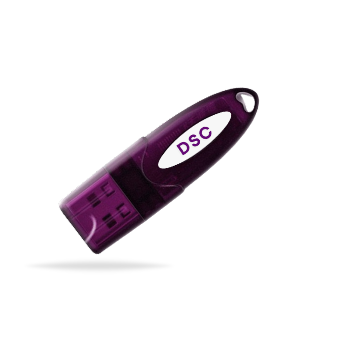
A DSC token is a physical USB hardware device used only to store a Digital SignatureCertificate (DSC) securely. The token itself is not the digital signature; it is simply the device that holds the DSC and protects it from misuse or copying.
DSC tokens are designed to keep the private key safe and ensure that the digital signature is used only by the authorized person. When a token is connected to the system, it allows the stored DSC to sign documents digitally in a secure and legally valid manner.
How Digital Signature Works in a Token?
The Digital Signature Certificate (DSC) is the electronic identity issued by a licensed Certifying Authority, while the token acts as a secure container for that certificate.
When a user connects the DSC token to a computer and initiates a signing process on a portal such as GST, EPFO, MCA, or a tender website, the system accesses the DSC stored in the token. The user must enter the token password (PIN) to authorize the signing action.
Without a DSC token, the digital signature cannot be used for signing or authentication on government portals.
Can You Face DSC Token Errors?
Yes, DSC token errors can occur even when the Digital Signature Certificate is valid and active. These issues are not always related to the certificate itself and are often caused by technical or system-level factors.
It is important to understand that:
- DSC token errors are common and usually temporary
- A valid DSC can still fail to work due to system or software issues
- Most DSC token errors can be resolved without replacing the certificate
- Proper troubleshooting can restore normal functionality quickly
Common DSC Token Errors
Some of the most commonly reported DSC token errors include:
- DSC token not detected or not recognized by the system
- DSC token showing connected but not visible in signing utility
- DSC token not working on specific portals
- Token driver installation or compatibility issues
- Incorrect token password (PIN) or token access errors
And more.
Solutions to Fix DSC Token Errors
Follow the steps below to fix common DSC token–related issues.
1. Check DSC Token Connection
a. Remove the DSC token and reinsert it properly
b. Try a different USB port on your system
c. Avoid using USB hubs or extensions
d. Ensure the token indicator light is active (if available)
2. Install or Reinstall DSC Token Drivers
a. Download the correct token driver from the authorized CA or token provider
b. Uninstall any existing or conflicting token drivers
c. Install the driver with administrator rights
d. Restart the system after installation
3. Verify Token Detection in System
a. Open the token management utility installed with the driver
b. Check whether the DSC token is visible in the utility
c. If the token does not appear, reinstall the driver or try another system
4. Check Token PIN and Access
a. Enter the correct token password (PIN)
b. Avoid repeated incorrect PIN attempts to prevent token lock
c. Contact your DSC provider if the token is locked
5. Try Using the Token on Another System
a. Test the DSC token on a different computer
b. This helps identify whether the issue is system-specific or token-related
Following these steps usually resolves most DSC token errors without the need for replacement.
Final Words
By following the steps outlined in this guide—checking the token connection, installing drivers correctly, verifying system compatibility, and managing PIN access—you can restore the functionality of your DSC token and continue signing documents securely.
Knowing how to fix DSC token errors ensures seamless compliance, secure digital signing, and uninterrupted access to government and regulatory portals.
Frequently Asked Questions (FAQ)
1. Why is my DSC token not working?
DSC token may not work due to several reasons, including:
- Token not properly connected to the system
- Outdated or missing token drivers
- Incorrect token PIN or locked token
- System or browser compatibility issues
- Java misconfiguration or portal access restrictions
Checking these factors usually helps identify the root cause.
2. How to resolve DSC error?
To resolve DSC errors:
- Ensure the DSC certificate is valid and not expired
- Check that the DSC is installed correctly on your system
- Make sure the portal or browser supports the DSC you are using
- Verify that the certificate is mapped to the correct user in the application
- Restart the system or application and try signing again
Want to know about more DSC errors and their solutions? Read here: Top DSC Errors and Solutions
3. How to solve “DSC Authentication Failed”?
“DSC Authentication Failed” typically occurs when the portal cannot access the DSC token or the certificate inside it. To fix it:
- Ensure the DSC token is connected and detected
- Check the token PIN and enter it correctly
- Make sure the token driver is installed and compatible
- Try using the token on a different system to rule out portal issues
4. How to activate DSC token?
Activating a DSC token involves:
- Receiving the token and certificate from a licensed CA
- Installing the token driver on your system
- Connecting the token to your computer
- Entering the initial token PIN to activate the DSC for digital signing
5. Can we use DSC without a token?
No, a DSC cannot be used without the token. The token securely stores the private key of the DSC, which is necessary for signing documents electronically.
6. How to fix DSC token error Windows 10?
Steps to fix DSC token errors on Windows 10:
- Ensure the token is properly connected and recognized by Windows
- Install or update the token driver compatible with Windows 10
- Run the browser or portal as administrator
- Verify Java version and security settings if required
- Test the token on a different USB port or computer
7. DSC error in GST or GST DSC error problem solution
For DSC error in GST:
- Check that the DSC token is connected and drivers are installed
- Ensure the portal supports the DSC and browser version
- Open the browser as administrator and enable the required plugins
- Check that the DSC certificate is valid and not expired
Explore more GST DSC error problem solutions.