
PAN India Presence
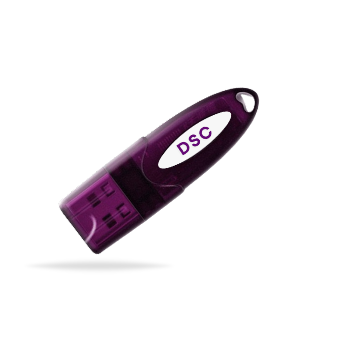
*Authorized DSC
16-Oct-2026
Digital Signature Not Working? Try These Simple Fixes
Digital Signature Certificate or DSC's use has become so common these days. The presence of almost every government portal has mandated its use.
A DSC is used to maintain security while signing documents and form submissions online. But using it is not always easy. Sometimes, you may face DSC errors, which might result in delays or signing failures.
Want easy Digital Signature fixes? Just go through this DSC solution guide.
Why YOUR Digital Signature Might NOT be Working?
Using a DSC seems easy. You search for best Digital Signature providers near you, select the one that suits you, buy DSC and use it on the portal you need.
But what will you do when you come face to face with a DSC problem?
There is no single specific reason for a non-working Digital Signature Certificate The issue can be related to the DSC token, certificate, PIN, signing utility, etc.
This means before you start looking for the solution, you need to figure out exactly what the problem is.
DSC Not Working: 5 Common Reasons
1. DSC Token Not Showing
Sometimes, you might not be able to see the option of choosing your DSC token might not be visible when you move forward to sign any document. The DSC token simply does not show on the computer. Wondering what might be the cause behind it?
If the token is connected but the certificate is still not detected, check whether the required token driver is installed.
An outdated driver can prevent your computer from reading the DSC.
2. Expired DSC Certificate
Every digital signature comes with its own validity period. As soon as the validity ends, the DSC expires and stops working. Any electronic signing done before that remains unaffected, but after that it becomes invalid.
You must check the validity period of your DSC by looking at its details. Renew DSC if it has expired, or keep track of it if the expiry date is approaching.
3. Digital Signature Validation Error
Sometimes your screen might show notifications like “Invalid Signature” or “DSC Certificate Invalid”
When you get yourself a Digital Signature, you have to make sure that it is validated.
4. DSC PIN Incorrect
When the DSC reaches you, it comes with its own password, which can be changed later on.
You should remember your DSC PIN at all times. In case you forget it and try to enter the wrong one multiple times, your DSC token will get locked.
As a result of this, you won't be able to sign documents online.
5. DSC Signing Utility Error
The DSC signing utility needs to be installed and running for the DSC to start functioning.
If your DSC utility is not running, then your system might recognize your token but not the portal.
Easy DSC Fixes
Below mentioned are a few simple steps that you can try if you are facing Digital Signature errors:
1. Try reconnecting USB token
- Plug DSC into a different USB port
- Check for any loose connections
2. Check DSC Validity
- Check the validity of digital signature and make sure it's not expired.
3. Stay careful with the DSC PIN
- Remember your exact DSC PIN
- Don't take risks by entering the wrong PIN again and again
4. Install the Correct Token Driver
See if the token driver is installed on your computer. If it is missing or not updated, download the compatible driver.
5. Restart the Signing Utility
Close the signing utility and start it again. Make sure it is running before you initiate the signing process on the portal.
6. Check Browser Compatibility
Make sure you are using a browser supported by the portal.
Close and reopen the browser after installing or updating the signing utility. Also, check whether the portal requires any specific browser settings.
Conclusion
A digital signature has gained a lot of importance in the digital world. Using it is almost a daily task for a lot of people handling official filings.
With such widespread use, it is important to know about DSC errors and issues and how to resolve them in the easiest way possible.
Frequently Asked Questions (FAQs)
1. Why is my digital signature not working?
There could be many reasons behind your non-working digital signature. Some of the top possible reasons behind it could be:
- an undetected USB token
- an expired DSC
- incorrect PIN
- missing token drivers
- signing utility issue
2. What to do if DSC is not working?
Try taking some basic steps first:
- Connect the USB token to your computer and install the required token driver.
- Open the token utility to check your certificate.
- Visit the relevant portal, complete DSC registration.
If the DSC is still not working, contact your DSC support team for further assistance.
3. How do I activate my digital signature?
Connect the USB token to your computer and install the required token driver.
Open the token utility to check your certificate.
Then visit the relevant portal, complete DSC registration if required, and select your certificate when prompted for signing.
4. How to fix digital signature on PDF?
If your digital signature is not working on a PDF, try the following:
- Open the PDF in a compatible PDF reader such as Adobe Acrobat Reader.
- Check whether the DSC certificate is valid.
- Make sure the certificate chain is trusted.
- Update your PDF reader to the latest version.
- Check whether the signed PDF has been modified after signing.