
PAN India Presence
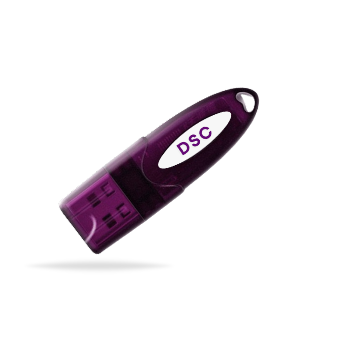
*Authorized DSC
23-Jul-2026
GeM Portal DSC Error: Common Issues and Easy Fixes
The GeM Portal relies on Digital Signature Certificates to verify the identity of its users and secure important transactions. So, a single DSC error on the GeM Portal can pause an entire procurement process.
What will you do in such a case?
Search for Digital Signature PDFs, DSC error videos, or read through complex GeM Portal DSC Error guides? Don't worry!
Here is a compilation of the most common GeM Portal DSC errors and the simple fixes to help you get back on track.
Buy Digital Signature from a Licensed Certifying Authority like Capricorn CA.
Government e-Marketplace (GeM)
The Government e-Marketplace (GeM) is India's official online procurement platform for government buyers and sellers. It was launched by the Government of India in 2016.
It enables government departments, public sector undertakings (PSUs), autonomous bodies, and other eligible organizations to procure goods and services from registered sellers.
It brings government procurement onto a transparent, efficient, and paperless digital platform. A major part of this online portal is Digital Signature Certificate (DSC).
A GeM Portal Digital Signature Certificate helps verify the identity of users and ensures the authenticity and integrity of electronic documents and transactions. It is required for various activities on the GeM Portal, such as seller registration, bid submission, document signing, and contract acceptance.
Common GeM Portal DSC Errors and Easy Fixes
1. DSC Not Detected on the GeM Portal
If the GeM Portal is unable to detect your Digital Signature Certificate (DSC), you won't be able to complete tasks that require digital signing. This issue can occur during seller registration, bid submission, or while signing documents on the portal.
Possible Causes
- The USB token is not properly connected to your computer.
- The token driver is missing, outdated, or not functioning correctly.
- The required signing utility is not installed or is inactive.
- The browser is unable to communicate with the connected DSC.
- The system fails to recognize the USB token.
Easy Fixes
- Disconnect the USB token and reconnect it securely before accessing the GeM Portal.
- Make sure the latest driver for your USB token is installed on your system.
- Check that the required signing utility is installed and running properly.
- Close and reopen your browser after connecting the DSC.
- If the problem continues, try a different USB port or restart your computer before attempting again.
2. Invalid DSC Class Error
The GeM Portal only accepts Class 3 Digital Signature Certificates for secure authentication and digital signing. If you try to use a certificate that doesn't meet this requirement, the portal may display an "Invalid DSC Class" error and stop the transaction.
Possible Causes
- A DSC other than Class 3 is being used.
- The wrong certificate was selected during the signing process.
- Multiple certificates are available, but an unsupported one was chosen.
Easy Fixes
- Confirm that you're using a valid Class 3 DSC for GeM transactions.
- Carefully select the correct certificate if more than one DSC is installed on your system.
- If you don't have a Class 3 DSC, apply for one through a licensed Certifying Authority before continuing with the process.
- If you've recently obtained a new DSC, make sure it is registered with your GeM account before using it.
3. Digital Signature Authentication Failed
The "Digital Signature Authentication Failed" error appears when the GeM Portal is unable to verify your Digital Signature Certificate during the authentication process. This can prevent you from signing documents, submitting bids, or completing other DSC-based activities.
Possible Causes
- An incorrect DSC has been selected for authentication.
- The DSC is not linked to the registered GeM account.
- The certificate has been revoked or is no longer valid.
- A temporary issue interrupted the authentication process.
Easy Fixes
- Verify that you're selecting the correct DSC for your GeM account.
- Ensure the DSC belongs to the registered user or authorized signatory.
- Check the status of your DSC and replace it if it has been revoked.
- Close the browser, reconnect the USB token, and try the authentication process again.
- If the issue persists, log in again and repeat the signing process.
4. Error While Signing Documents on the GeM Portal
Sometimes, the GeM Portal detects your DSC successfully but displays an error when you try to sign a document. This can interrupt important tasks such as bid submission, contract acceptance, or other document-based transactions.
Possible Causes
- The signing process was interrupted.
- The required signing utility is not responding.
- An unsupported or outdated browser is being used.
- The selected DSC is invalid or unavailable during the signing process.
Easy Fixes
- Refresh the page and start the signing process again.
- Ensure the signing utility is running properly before attempting to sign.
- Use a supported and updated web browser.
- Verify that the correct DSC is selected when prompted.
- Close unnecessary browser tabs or applications and try again.
5. DSC Registration on GeM Portal Failed
In some cases, users may encounter an error while registering or updating their Digital Signature Certificate on the GeM Portal. Until the DSC is registered successfully, DSC-based activities on the portal cannot be completed.
Possible Causes
- An incorrect DSC has been selected for registration.
- The DSC details do not match the registered user information.
- The certificate has expired or is no longer valid.
- A temporary issue interrupted the registration process.
Easy Fixes
- Ensure you're registering the correct DSC linked to your GeM account.
- Verify that the user details associated with the DSC are accurate.
- Confirm that the DSC is valid and has not expired.
- Refresh the page and try registering the DSC again.
- If you've recently renewed your DSC, register the new certificate before using it on the portal.
6. USB Token Not Recognized
The GeM Portal can only access your Digital Signature Certificate if your computer detects the USB token correctly. If the token is not recognized, the portal won't be able to use your DSC for authentication or document signing.
Possible Causes
- The USB token is not connected securely.
- The token driver is missing or corrupted.
- The USB port is not functioning properly.
- The USB token is damaged or malfunctioning.
Easy Fixes
- Remove the USB token and reconnect it securely.
- Try connecting the token to a different USB port.
- Install or reinstall the latest USB token driver.
- Check whether the USB token is detected by your computer.
- If the token is still not recognized, contact your Certifying Authority for further assistance or a replacement token.
7. Expired Digital Signature Certificate
Every Digital Signature Certificate is issued with a fixed validity period. Once it expires, it can no longer be used for authentication or digital signing on the GeM Portal. As a result, you may face errors while registering your DSC, signing documents, or completing other portal activities.
Possible Causes
- The validity period of the DSC has ended.
- The certificate was not renewed before its expiry date.
- An expired certificate is still selected for signing.
Easy Fixes
- Check the validity of your Digital Signature Certificate before using it on the GeM Portal.
- Renew your DSC through a licensed Certifying Authority if it has expired.
- If multiple certificates are available, make sure you select the renewed and valid DSC during the signing process.
- Update your DSC on the GeM Portal after renewing it, if required.
8. Authorized Signatory Mismatch
This error occurs when the DSC does not belong to the registered authorized signatory.
Possible Causes
- A different person's DSC is being used.
- The organization's authorized signatory has changed.
- The DSC details have not been updated on GeM.
Easy Fix
- Use the DSC of the registered authorized signatory.
- Update the authorized signatory details on the GeM Portal if required.
- Register the new DSC before using it.
9. GeM Signer Utility Not Working
The signer utility is essential for DSC-based operations. If it is not working properly, the portal may fail to detect or use your certificate.
Possible Causes
- The signer utility is not installed.
- An outdated version is being used.
- Background services are not running properly.
Easy Fix
- Install or update the latest GeM signer utility.
- Restart the utility and your browser.
- Reboot the system if the issue persists.
Want to know more common DSC errors plus their solutions? READ HERE!
Buy GeM Digital Signature Certificate and carry out your GeM Portal transactions with confidence.
Final Words
GeM DSC not working?
Whether you're registering on the GeM Portal, submitting bids, or signing important documents, a valid and properly configured DSC is essential for a seamless experience. Understanding the common causes of DSC errors can help you resolve them faster and prevent them from recurring.
Need a new GeM Portal Digital Signature Certificate for the GeM Portal? Buy Capricorn DSC— a secure, hassle-free, and fully compliant solution to help you get started quickly.
FAQs
1. Do I need a signer utility to use a DSC on the GeM Portal?
Yes. A signer utility is generally required to enable secure communication between your Digital Signature Certificate (DSC) and the GeM Portal.
If the utility is not installed or isn't running properly, you may face issues while signing documents or completing DSC-based activities.
2. Why is my signer utility not detecting my DSC on the GeM Portal?
This can happen if the USB token is not connected properly, the token driver is outdated, or the signer utility is not functioning correctly.
Ensure your USB token is connected, the required drivers are installed, and the signer utility is running before accessing the GeM Portal.
3. How do I verify whether my DSC is valid before using the GeM Portal?
You can check your DSC's validity by opening the certificate details on your computer or through your USB token management software.
Verify the expiry date and ensure the certificate has not been revoked. If your DSC has expired, renew it before using it on the GeM Portal.
4. Why is my renewed DSC not working on the GeM Portal?
After your DSC Renewal, you may need to register or update the new certificate on your GeM account.
If the portal is still using your previous certificate, the renewed DSC may not be recognized. Also, ensure you're selecting the renewed certificate during the signing process.
5. Can an expired DSC cause errors on the GeM Portal?
Yes. An expired DSC cannot be used for authentication or digital signing. It may prevent you from registering your DSC, signing documents, submitting bids, or completing other DSC-based activities on the GeM Portal.
6. How do I update my DSC on the GeM Portal?
Log in to your GeM account and navigate to the DSC management or profile section.
Connect your USB token, select the new Digital Signature Certificate, and follow the on-screen instructions to complete the update.
Once the process is successful, you can continue using your updated DSC for GeM transactions.