PAN India Presence
*Authorized DSC
02-Jun-2026
How to Fix 'Token Not Detected' Error in Chrome?
You plug in your DSC token, open Chrome, and get ready to sign a document—only to be greeted by the frustrating "Token Not Detected" error.
Now what?
What to do now? Checking DSC error guides? Watching Digital Signature certificate (DSC )support videos? It's too tiring and time-consuming!
Instead of wasting time trying random fixes, it's better to identify the exact cause of the problem and resolve it step by step.
Here is the complete "Token Not Detected" error guide for the practical solutions that can get your DSC token working again in minutes.
Buy Digital Signature Certificate from a trusted Certifying Authority like Capricorn CA.
DSC Token Not Detected?
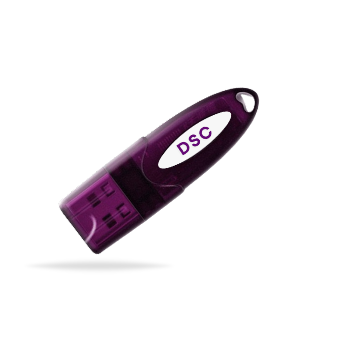
A DSC token is a secure USB device that stores your Digital Signature Certificate and enables you to sign documents electronically. When you connect the token to your computer and initiate a signing process, Chrome communicates with the token through the required drivers and signer utility to access the certificate.
However, if Chrome is unable to recognize or communicate with the token, you may encounter the "Token Not Detected" error. As a result, the certificate stored in the token cannot be accessed, preventing you from completing the signing process.
Common Reasons Behind the "USB Token Not Detected" Error
Here are the most common reasons behind the “DSC Certificate Not Showing in Chrome” error:
1. USB Token Connection Issues
A loose connection, faulty USB port, or improperly inserted token can prevent your system from recognizing the device.
2. Missing or Outdated Token Drivers
DSC tokens require specific drivers to communicate with your computer. If these drivers are not installed correctly or have become outdated, Chrome may fail to detect the token.
3. Signer Utility Problems
Most DSC-enabled portals rely on a signer utility to establish communication between the browser and the token. If the utility is not installed, not running, or not updated, the token may not be detected.
4. Browser Compatibility Issues
An outdated version of Chrome or incorrect browser settings can sometimes interfere with the token detection process.
5. Disabled or Missing Browser Extensions
Some websites require dedicated extensions for digital signing. If these extensions are disabled or missing, Chrome may not be able to access the DSC token.
6. Antivirus or Firewall Restrictions
Security software can occasionally block the connection between the token, signer utility, and browser, resulting in detection errors.
7. Hardware-Related Issues
A damaged USB token, faulty USB port, or system hardware issue can also prevent successful token recognition.
8. Operating System Conflicts
Pending system updates or compatibility issues between the operating system and token software may affect the token's functionality.
How to Fix the "Token Not Detected" Error in Chrome?
1. Reconnect the DSC Token
- Remove the token from the USB port.
- Wait a few seconds and reconnect it properly.
- Ensure the token is firmly inserted.
- If possible, try a different USB port.
2. Check Whether Your Computer Detects the Token
- Open Device Manager on your computer.
- Look for the USB token under connected devices.
- If the token does not appear, the issue may be related to the driver or hardware.
3. Reinstall or Update Token Drivers
- Uninstall the existing token driver.
- Download and install the latest driver version.
- Restart your system after installation.
- Reconnect the token and check if it is detected.
4. Verify the DSC Certificate
- Open the token management utility.
- Check whether your Digital Signature Certificate is visible.
- Confirm that the certificate has not expired.
5. Ensure the Signer Utility Is Running
- Verify that the required signer utility is installed.
- Restart the utility if it is already running.
Make sure there are no errors in the utility status.
6. Update Google Chrome
- Open Chrome settings.
- Check for available updates.
- Install the latest version and restart the browser.
7. Clear Browser Cache
- Clear Chrome's cache and browsing data.
- Close all browser windows.
- Relaunch Chrome and try again.
8. Check Antivirus and Firewall Settings
- Temporarily disable antivirus or firewall software.
- Test whether the token is detected.
- If the issue is resolved, add the signer utility and browser to the exception list.
9. Test the Token on Another Computer
- Connect the token to a different system.
- If the token works, the issue is likely with your computer settings.
- If it doesn't work elsewhere, the token may be damaged.
10. Restart Your Computer
- A simple system restart can sometimes resolve temporary software conflicts.
- Reconnect the token after restarting and test it again.
Capricorn CA: Your Stop for Error-Free Digital Signatures
At Capricorn CA, we don't just provide Digital Signature Certificates—we ensure you get a smooth, hassle-free experience from start to finish.
If you regularly deal with DSC-related work like MCA filings, GST submissions, e-tendering, or income tax processes, even a small technical issue can slow down your entire workflow. That's where having the right DSC provider and support system makes a real difference.
More than just a DSC provider…
Working with digital signatures can sometimes be technical and confusing—especially when dealing with drivers or signer utilities. That's why having expert guidance matters.
With Capricorn CA, you get not just a certificate, but also reliable support whenever you face DSC related issues, ensuring your work never gets stuck due to technical errors.
If you want a smooth digital signing experience, buy digital signature from Capricorn CA today!
Final Words
The "Token Not Detected" error in Chrome is one of the most common issues faced while using a Digital Signature Certificate, but in most cases, it is not a serious problem.
By following the step-by-step fixes shared above, you can easily identify and resolve the DSC Token Errors without unnecessary confusion or delays.
Frequently Asked Questions (FAQ)
1. What are the correct Chrome DSC settings to avoid token issues?
To avoid errors like "Token Not Detected", ensure that Chrome is updated to the latest version, required extensions for DSC are enabled, and pop-ups are allowed for signing portals.
Also, make sure the DSC signer utility is running in the background, and your token drivers are properly installed.
2. What is a DSC registration error, and why does it happen?
A DSC registration error usually occurs when the system is unable to read or register your Digital Signature Certificate from the USB token.
This can happen due to incorrect installation of drivers, expired certificates, browser compatibility issues, or incomplete token setup during registration.
3. What are common Class 3 DSC issues users face?
Some common Class 3 DSC issues include:
Token not being detected, certificate not showing during signing, login failures on government portals, and errors during MCA or GST filings.
These issues are generally linked to driver problems, signer utility errors, or system configuration mismatches.
4. When should I go for digital signature renewal?
You should opt for digital signature renewal before your DSC expires. If your certificate has already expired, you will not be able to sign documents or complete online filings.
It is recommended to renew your DSC a few days before expiry to avoid workflow interruptions.